

An employee recognition program report is a one-page summary of what your program set out to achieve, what it delivered, what it cost, and what should happen next. Giftronaut’s corporate gift card reporting exports order history as CSV by date, status, or country, giving you a clear starting point for the reward activity in your report. Pair those records with your spending and outcome data, then use the free Employee Recognition Program Report Template to bring everything together in one editable page, with guidance for each metric and ready-to-use AI prompts.
Recognition programs are often easier to run than to report on consistently. Gallup reports that as of May 2026, only 29% of U.S. employees say they received recognition or praise for doing good work in the past seven days. For teams investing in recognition, a simple reporting structure makes it easier to track who was reached, what was spent, and what should happen next. This guide walks through the metrics to include, where to find them, and how to build the report in five steps.
📌 TL;DR
- An employee recognition program report is one page: progress against the goal (target and actual), budget, reward activity, and one next step.
- Pair reward data (what you sent and spent) with outcome data (what changed) so the report shows results, not just activity.
- When data is missing, write Not available; for an outcome you did not measure, use Not measured. A smaller, accurate report is better than a complete-looking report built on guesses.
- Giftronaut provides order history exports and redemption status on Refund Option orders, giving you source data for reward activity, delivery, and redemption reporting.
What is an employee recognition program report?
An employee recognition program report is a short document that answers four questions about your rewards: What did we aim for? What happened? What did it cost? What do we do next? It is not the program itself or a survey. It is the page an HR lead, finance partner, or executive can use to understand whether the program should continue, grow, or change.
Many recognition programs do not have a consistent way to summarize what happened from one cycle to the next. A one-page report creates that record: what the program aimed to do, who it reached, what it cost, and what the team learned.
The report has three jobs:
-
Document the program activity. Show how many rewards were sent and how many employees were reached.
-
Connect spend to the outcome. Put program costs next to the result you were tracking.
-
Define the next step. End with one recommendation, such as repeat, expand, or adjust.
Keep it to one page. A consistent one-page format is easier to review, share, and compare from one reporting period to the next. The same structure can also work across peer recognition, milestone awards, sales incentives, and referral bonuses, so teams can reuse the framework instead of rebuilding the report each time.
You do not need special software to start. A Google Doc or Word file works. What matters is using the same fields each cycle so this quarter’s numbers can be compared with the next. Giftronaut’s free report template lays out those fields and includes example inputs so you can see what a completed report looks like before adding your own data.
Why does an employee recognition program need a report?
Recognition programs compete for budget and attention like any other internal program. A report gives HR and People teams a consistent way to show how many employees were reached, what was spent, and what happened against the program’s goal. That makes the program easier to review when budgets, priorities, or ownership change.
That becomes especially important when recognition is not treated as a strategic priority. Workhuman and Gallup found that 81% of leaders say recognition is not a major strategic priority for their organization, while 73% of senior leaders say their organization offers no best-practices training for managers on recognition. When a program competes for resources, a consistent report gives decision-makers a clearer view of what was spent, what happened, and what should change next.
Three situations make the report urgent:
-
Budget season. Finance asks what the reward spend delivered. A report gives them one place to review the numbers instead of piecing together individual orders.
-
A leadership change. A new executive asks how the program has performed. The report preserves the program history.
-
A program handoff. A new owner inherits the program. The report shows what was tried, what happened, and what still needs attention.
Your own reward records can also show whether recognition is concentrated in one team, sender, or time period. If most rewards are clustered in one part of the organization, note that pattern in the takeaway and use it to inform the next step.
The good news? You do not need a data team. Reward records, spend records, and one outcome metric you already track are enough to fill the page. Use what you have, mark missing data Not available (or Not measured for an outcome you did not measure), and improve the report each cycle. The free Employee Recognition Program Report Template includes guidance on what each number means and what to do when data is missing.
What should an employee recognition program report include?
Every employee recognition program report needs three core sections: program outcome, budget, and reward activity. Add a short takeaway at the top and finish with one next action, including an owner and deadline. Anything more detailed can live in an appendix or separate analysis.
-
Target. The measurable outcome the program aimed to achieve during the reporting period. For example: “Recognize 100% of employees at least once this quarter” or “Increase the pulse-survey recognition score by the end of Q4.”
-
Actual result. What happened against that target, using the same unit. If the target was a count, report a count. If it was a survey score, report the score.
-
Budget. Recorded spend, any refunded amount, and net recorded spend. If you set a planned budget, compare it with net recorded spend and explain the plan basis.
-
Reward activity. Show the activity behind the program: reward value ordered, number of reward entries, delivery rate, and redemption where tracking is available. If you also report unique employees reached, count each person once across the reporting period.
-
Next step. Choose one action and include an owner and deadline. For example: review unredeemed rewards after the redemption window closes before setting next quarter’s budget.
Here is an illustrative example:
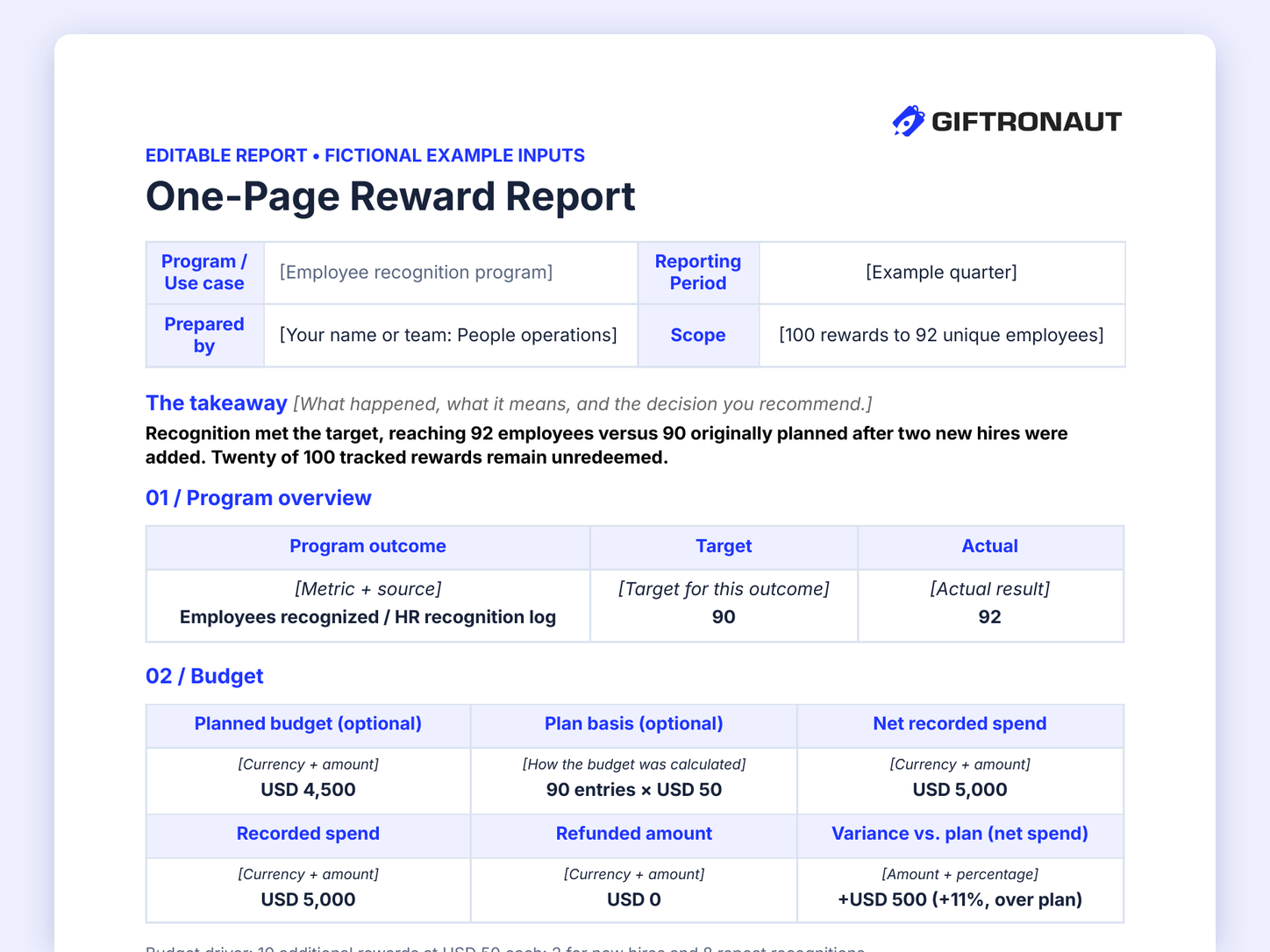
A company planned to recognize 90 employees during the quarter. Two new hires joined and were also recognized, bringing the actual reach to 92 employees. Separately, 20 of 100 tracked rewards remained unredeemed. The next action is to review those rewards after the redemption window closes before setting the next quarter’s budget.
The budget section explains why spend differed from the plan. In this fictional example, the planned budget was USD 4,500 based on 90 reward entries at USD 50 each. Recorded spend was USD 5,000, a +USD 500 (+11%) variance. The additional spend came from 10 extra rewards: 2 for new hires and 8 repeat recognitions. That distinction matters because 100 reward entries went to 92 unique employees. A recipient target and a reward-entry budget are related, but they are not the same thing.
The template follows this structure and includes example inputs. Its source guide explains what each metric means, where to find it, and how to calculate it. Replace the fictional inputs with your own, use Not available or Not measured where appropriate, and check every figure against the source records before sharing.
One rule keeps the report honest: state the limitation. If you measured reach but not employee sentiment, say so. If the redemption window is still open, say that too. And remember that progress against a target does not prove the rewards caused the result.

Which metrics belong in the report, and where do you find them?
Two kinds of metrics belong in the report: reward metrics, which show what you sent and spent, and outcome metrics, which show what changed. Reward metrics come from your reward platform. Outcome metrics come from systems you already use, such as your HR system, an engagement survey, or your CRM. Reporting both is what separates a results page from an activity log.
| Metric | What it tells you | Where to find it |
|---|---|---|
| Reward entries | Volume of recognition, including repeats | Order history CSV export, filtered by date range, order creator, status, or country |
| Unique employees | Reach across the company | Recipient-level CSVs, deduplicated across all orders in the period |
| Delivered and bounced | Whether rewards reached inboxes | Recipient-level CSV with delivery status for each included order |
| Recorded spend, refunds, and net recorded spend | What the program cost | Balance History transactions matched to included orders; receipts support reconciliation |
| Redeemed vs. unredeemed (optional) | Whether tracked rewards were redeemed | Redemption Status in order history |
| Planned budget and variance (optional) | Whether net spend stayed on plan | Your approved budget; variance = net recorded spend − planned budget |
| Recognition score | How employees experience recognition | Your pulse or engagement survey |
| Program outcome (retention, sales, referrals) | The result the program was designed to track | HR system, CRM, survey, or referral tracker |
If you use a recognition score from a pulse or engagement survey, compare it primarily with your own program target and prior reporting periods. External benchmarks can add context, but only when the survey question and employee population are comparable.
On the Giftronaut side, the order history can be exported as full history, a filtered view, or a single-order recipient-level report. Filtered exports can use criteria such as date range, order creator, status, or country. For delivery reporting, use the recipient-level CSV for each included order rather than treating a completed order as proof of delivery.
For spending, match Balance History transactions to the included orders. Keep Balance Used charges and confirmed Refund credits separate by currency, then calculate net recorded spend as recorded spend minus refunded amount. Exclude account funding and transfers; receipts under Account Balance → History can support reconciliation.
For Refund Option orders, Giftronaut also shows a Redemption Status column in order history. Use that status to report tracked rewards, redeemed rewards, and redemption rate. Report confirmed refunds separately so net spend reflects them, and never treat an unredeemed reward as a confirmed refund.
Choose one primary outcome metric tied to the program’s goal rather than adding several loosely related measures. If the program is focused on reach, for example, report the percentage or number of employees recognized. If you did not measure an outcome, say so instead of substituting an unrelated metric. Get the free template to see it laid out field by field.
How do you build the report in five steps?
Building the report takes five steps, and the process is straightforward once you know which source feeds each field.
Step 1: Write the target
State the goal using a measurable metric and reporting period. “Recognize 100% of employees at least once this quarter” works; “Improve morale” does not. If the program began without a target, do not create one retrospectively. Report the actual result, mark the target Not available, and set a measurable target for the next cycle.
Step 2: Pull the reward data
Export the order history for the reporting period. Count reward entries, and count unique employees once across all orders in the period. With Giftronaut, download each included order’s recipient-level CSV to see delivery status, and combine them for the period. For spend, use Balance History transactions matched to those orders.
Step 3: Pull one outcome metric
Choose the metric the target names. If the target is reach, divide unique employees by headcount and state the target as a percentage too. If it is a survey score, pull the latest pulse result. If you did not measure the outcome, write Not measured; if you cannot obtain the data, write Not available. Do not guess or treat missing data as zero.
Step 4: Fill in the page
Enter the target and actual result, budget, and reward activity. The template also includes optional AI prompts to organize reward data, surface missing information, and draft the report. If you attach exports to an AI tool, remove names, email addresses, and reward links, but keep a consistent anonymous ID so repeat recipients can still be counted correctly. Review every figure against the original source before sharing.
Step 5: Write the next step
End with one concrete action, plus an owner and deadline. “Review the 20 unredeemed rewards after the redemption window closes” is actionable. “Keep monitoring” is not.
Whatever outcome you choose, use the same definition and source from one reporting period to the next. Consistent measurement makes trends easier to interpret and prevents teams from changing the metric whenever the result is inconvenient.
How do you report on an employee incentive program, sales rep incentive programs, and a referral bonus for employees?
You use the same sections for each program type and change only the target and outcome metric. The structure stays fixed, which makes reports easier to compare.
Employee incentive program
An employee incentive program might reward a behavior such as completing training, reaching a safety target, or hitting a milestone. Set the outcome in the same unit you plan to report, for example, “90% of employees complete training by March 31.” Then use reward activity and budget data to show what was sent and spent alongside that result.
Sales rep incentive programs
Sales rep incentive programs can use a quota, deal count, or campaign goal as the outcome metric. Report the actual result in the same unit, then add the reward activity and spend associated with the incentive period. The next action might be to repeat the program, adjust the reward structure, or change the eligibility criteria for the next cycle.
Referral bonus for employees
A referral bonus for employees rewards staff for a defined referral outcome, such as a qualified referral or successful hire. If the target is “25 qualified referrals this quarter,” report actual qualified referrals using the same definition, then add the bonuses sent and program spend.
Use the same field names across programs whenever possible. If employee recognition, sales incentives, and referral bonuses all report the program outcome, budget, reward activity, and next action in the same format, stakeholders can review each program without learning a new reporting structure. Giftronaut's Employee Recognition Program Report Template covers employee recognition, sales rep incentive programs, and referral bonuses in the same one-page layout, so you start from a structure that fits all three.
How does Giftronaut make recognition reporting easier?
Giftronaut makes recognition reporting easier by keeping every reward in one order history and exporting the records the report needs.
- Exportable order history. Export full history, a filtered view, or recipient-level detail for individual orders so you can build the reward-activity section from source records.
- Delivery and redemption status. Recipient-level order reports show delivery status, and Refund Option orders include redemption status for tracked rewards.
- Spend reconciliation. Match Balance History transactions to the orders in your reporting period and use downloadable receipts to support reconciliation.

- Team access. A Super Admin can invite team members and assign granular permissions to fund, send, and view account data.
- Choice cards for employee recognition. Giftronaut lets you send Choice Cards, where each recipient picks their own brand at redemption, from 4,300+ brands across 225 countries, while you get to keep the order record needed for reporting.
- Automation for recurring programs. Smart Order can automate recurring or event-based rewards such as birthdays and work anniversaries, helping ongoing programs create a consistent order history over time.
Ready to see it yourself? Try a sample of the recipient experience, or start the report with the free Employee Recognition Program Report Template. You do not need a Giftronaut account to use the template.
Free download:
Employee Recognition Program Report Template
One editable page with your target, actual result, reward activity, and budget.
What is the next step for your recognition program report?
You do not need dozens of metrics to start. Use one program outcome, the spending behind it, the reward activity that supports it, and one next action.
Start with the free Employee Recognition Program Report Template. It gives you an editable one-page report, example inputs, source guidance for each metric, and optional AI prompts to help organize your data.
When you are ready to send rewards that recipients choose themselves, Giftronaut lets you send Choice Cards from 4,300+ brands across 225 countries, and order history exports give you the records to fill it in. Explore the Giftronaut Choice Card to see how it works.

Frequently Asked Questions
Is the Employee Recognition Program Report Template free?
Yes. The template is free. Download it, edit it, and reuse it every quarter.
Do I need a Giftronaut account to use the template?
No. Use your existing reward records and outcome data. The guide also includes tips for reporting with Giftronaut.
Can I edit the report?
Yes. Copy it to Google Docs, download it as Word, or edit the HTML version. Use a desktop or laptop for HTML editing.
What if I do not have every metric?
Report only what your sources support. Use Not available when data cannot be obtained and Not measured when an outcome was not measured. Do not fill gaps with estimates unless they are clearly labeled and appropriate for the report.
How often should I send a recognition program report?
Create a report at the end of each program cycle. For an ongoing recognition program, that may be monthly or quarterly; for a fixed campaign, report once the cycle ends. Use the same fields each time so results are easier to compare.
What corporate gift card reporting does Giftronaut provide?
Giftronaut exports order history as CSV, including full history, filtered views, and recipient-level detail for individual orders. Filtered exports can use criteria such as date range, order creator, status, or country. Recipient-level reports include delivery status, while Balance History and downloadable receipts support spend reconciliation.
Does Giftronaut show whether recipients redeemed their rewards?
Yes, for orders with the Refund Option enabled. Giftronaut shows redemption status for tracked rewards in order history. Other orders include delivery and bounce status but may not include redemption tracking.
