
When you send a gift card to an employee, customer, or client, the experience should feel like it's coming from your company. Not a third-party rewards platform.
That's where white label gift cards come in. By keeping your branding consistent throughout the gifting experience, from the initial reward email to the final redemption, you create a more familiar, professional, and trustworthy experience for recipients.
With Giftronaut's White Label feature, your branding carries through the entire recipient journey. Your logo and colors appear across the reward email, verification page, and redemption page, while Giftronaut branding is removed.
The result? A seamless gifting experience that puts your brand front and center.
What Is Giftronaut?
Giftronaut is a digital rewards and incentives platform that helps businesses send gift cards, prepaid cards, and cash options to recipients in 225 countries.
Whether it's for employee rewards, client appreciation, or customer incentives, Giftronaut's all-in-one portal makes it easy to deliver personalized and meaningful gifts.
The Giftronaut Choice Card lets each recipient choose from 4,300+ gift card products in their local currency, eliminating guesswork, shipping delays, and unwanted gifts.
Book a demo to learn more, or create a free account to start sending rewards right away!

When to Use White Label
The White Label feature is ideal if you:
- Want recipients to see your company, not Giftronaut, from the reward email through redemption
- Send rewards to customers, partners, or research participants who may not recognize the Giftronaut name
How to Set Up White Label
Follow these step-by-step instructions to start sending white-labeled rewards on Giftronaut:
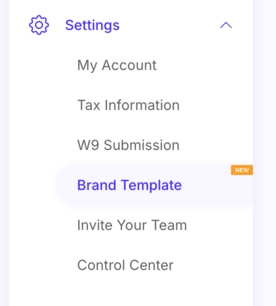
1. Open Brand Template
In the Giftronaut portal, go to Settings > Brand Template.
2. Turn on White Label
At the top of the page, you'll see two options:
- Basic: your logo in the reward email and your brand color on buttons and highlights
- White Label: everything in Basic, plus your logo on the verification and redemption pages, a custom footer logo, and Giftronaut branding removed
To compare them before you switch, check the What Changes card below your templates. It shows the reward email, verification page, and redemption page side by side for Basic and White Label.
When you're ready, switch on the White Label toggle and agree to the terms to get started.
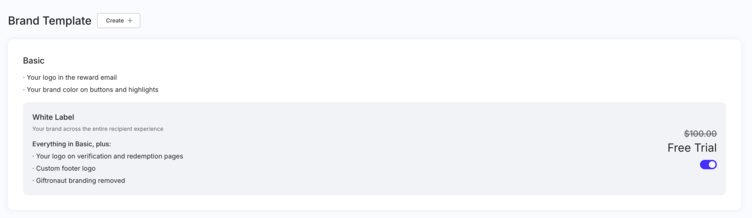
White Label is set for your whole company account and applies to every order you pay for while it's enabled.
3. Create or edit your template
Click Create next to the page title to make a new Brand Template, or edit an existing one. Then set:
- Sender Name and Message
- Logo: upload and crop your logo
- Set the Button Color and Border Color
- Footer logo: choose Use my logo or No logo
The "From" name recipients see in their inbox is your Email Display Name, which you can update in My Account > Company Information.
4. Preview and send a test email
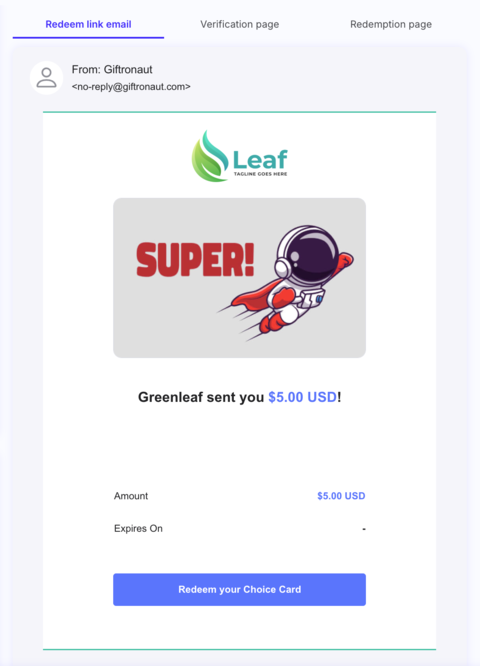
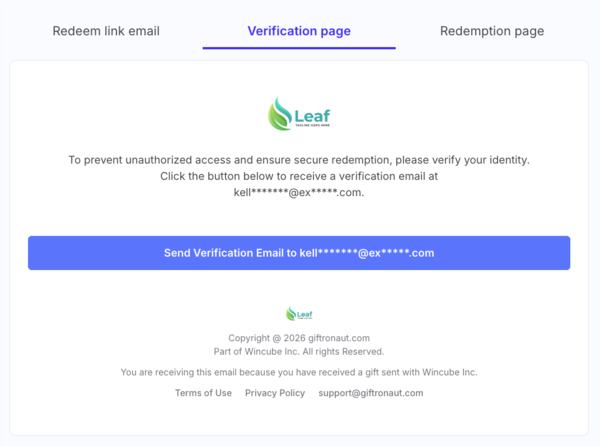
The preview on the right has three tabs: Redeem link email, Verification page, and Redemption page. Check each one to see exactly what recipients will see.
Redeem link email
Verification page
Redemption page
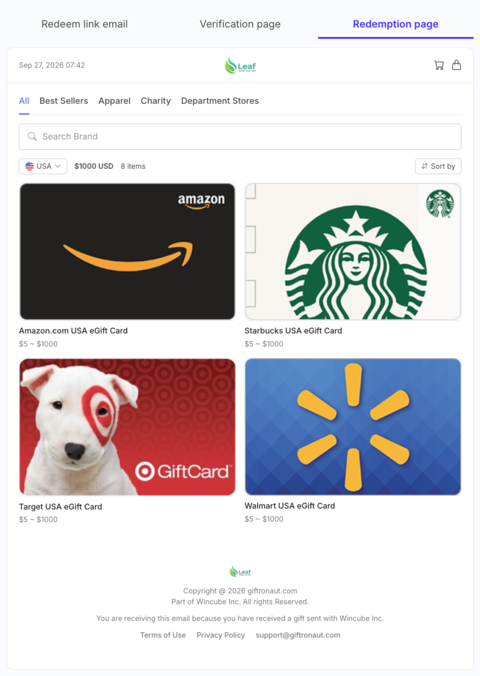
Once you save, use Send a Test Email from your Brand Template list to check the email in your own inbox.
5. Place your order
When you place a One-Time Order or Smart Order, or create a campaign in Campaign Management, choose your Brand Template in the message step. A White Label On chip confirms your setting, and the preview shows what recipients will see.
Please note: Each order keeps the branding it had at payment. Editing or deleting a template, or turning White Label off later, won't change emails, pages, or resends for rewards you've already sent.
FAQs
Is there a fee to use White Label?
Not right now. White Label is free for a limited time, so you can turn it on in Settings > Brand Template at no cost. New to Giftronaut? Create a free account to get started.
What will my recipients see with White Label on?
- Your logo and button color in the reward email, on the verification page, and on the redemption page
- "Choice Card" instead of "Giftronaut Choice Card."
- Your sender name as the browser tab title, with no Giftronaut icon
- Your logo, or no logo, in the footer, based on your Footer logo setting
Does Giftronaut appear anywhere once White Label is on?
A few details stay the same. Footers keep Giftronaut's copyright line and support@giftronaut.com, so recipients always have somewhere to get help, and the verification and redemption pages also link to the Terms of Use and Privacy Policy. Reward emails are sent from no-reply@giftronaut.com, shown under your Email Display Name.
Can I turn White Label off?
Yes. Switch it off anytime in Settings > Brand Template. New orders go back to Basic branding, and rewards you've already sent keep the branding they were sent with.
Does White Label work with Branded Cards and reward links?
Yes. It applies to both the Giftronaut Choice Card and Branded Cards. Download Reward Link orders use your default Brand Template, so make sure the template you want is set as your default before you place one.