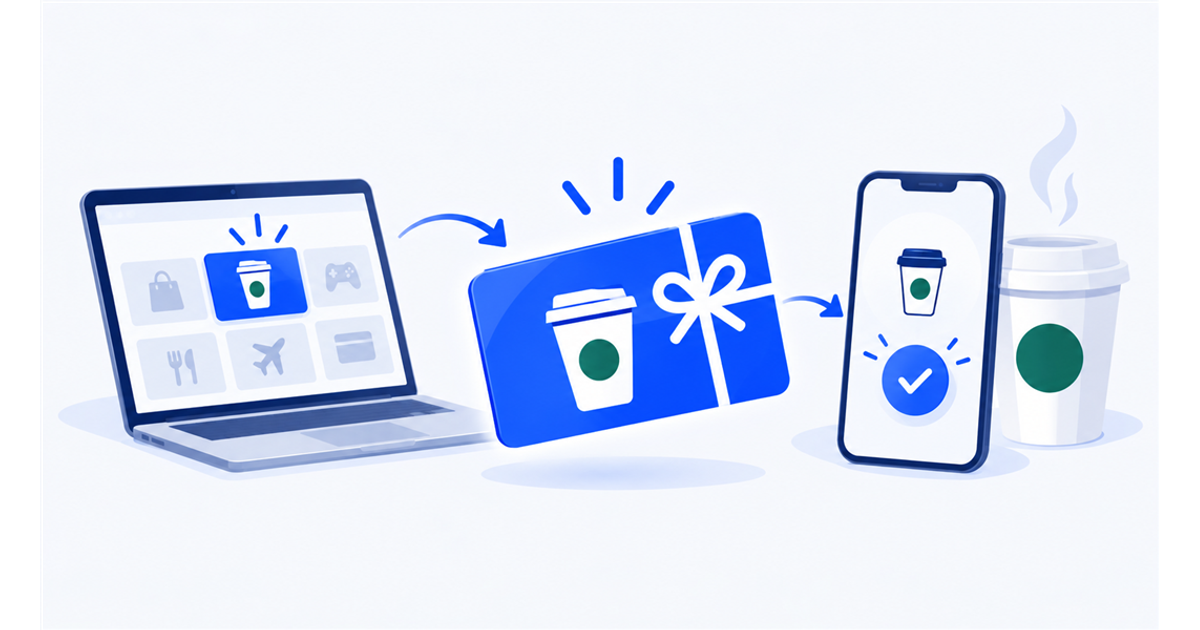
To redeem a Starbucks eGift card, open the original gift message and add the card to your Starbucks account, use the registered card for a mobile order in the Starbucks app, or print it for a café purchase. Starbucks’ 2023 Card Terms and Conditions list the account, transfer, and print options. Starbucks’ published card and Rewards terms do not establish a separate generic Starbucks.com checkout route for an eGift.
If an employer or client sent your Starbucks eGift through Giftronaut, start with the original email or reward link. Giftronaut’s recipient guide explains what recipients see when they open and redeem a reward.
How do I redeem my Starbucks eGift card?
A Starbucks eGift you received has three recipient routes: add it to your Starbucks account, transfer its value to an existing Starbucks Card, or print it for a store purchase. Starbucks’ Card Terms and Conditions list these options.
For the sender-side buying and delivery process, see how to buy and send a Starbucks eGift card. This page stays focused on opening and using a card you received.
How to add a Starbucks eGift to the app
Registering a Starbucks eGift connects its balance to your Starbucks account. Starbucks’ Rewards Terms of Use state that you can register an eGift with its card number and security code, then use a registered Starbucks Card for qualifying purchases, including mobile orders in the app.
Follow these steps:
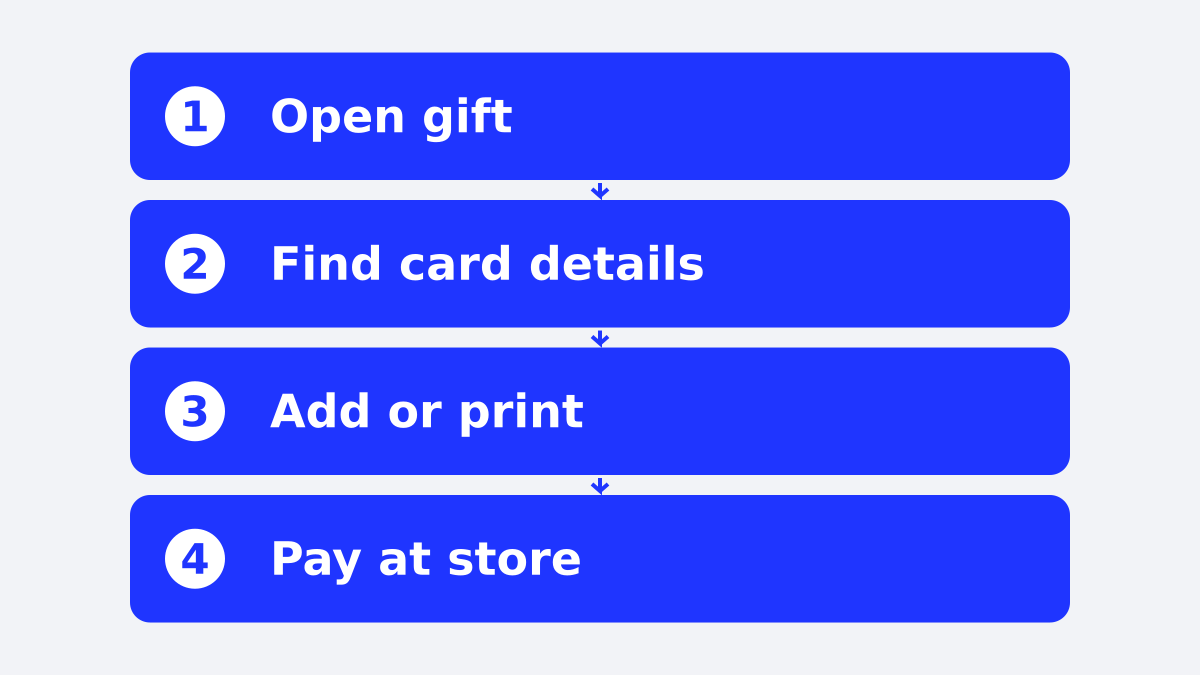
- Open the gift message. Use the email, message, or delivery link that contains the Starbucks eGift.
- Open the card page. Follow the card or redemption link supplied with the gift.
- Choose the account option. Starbucks’ 2023 Card Terms say recipients can add an eGift to a Starbucks account or transfer its value to an existing Starbucks Card.
- Enter the card details. Provide the card number and security code when the Starbucks page requests them.
- Place a mobile order in the app. After the card is registered, use the registered Starbucks Card for a qualifying purchase through the Starbucks app.
Starbucks’ 2023 Card Terms define an eGift as a virtual Starbucks Card with one unique card number. The same number remains associated with the eGift when the message is printed.
Can you use a Starbucks eGift online?
A registered Starbucks eGift can be managed online through your Starbucks account, including balance access. For a mobile order, use the registered card in the Starbucks app. Starbucks’ published card and Rewards terms do not establish a separate generic Starbucks.com checkout route for an eGift.
Can you use a Starbucks eGift without the app?
A Starbucks eGift works without the app when you print it and bring the printed gift to a participating café. Starbucks’ 2023 Card Terms specifically list printing the eGift as an option for making a store purchase.
Use this route when you want to pay in store without using the app:
- Open the original eGift message.
- Use the available option to print the eGift.
- Bring the printed eGift into a participating Starbucks store.
- Present it for a store purchase.
Store acceptance is not identical everywhere. Starbucks’ 2023 Card Terms say that most Starbucks stores in North America, including Puerto Rico, accept Starbucks Cards, while some airport, grocery, bookstore, and Guam locations have different rules. The Starbucks store locator can help you find a location, but ask the café if you are unsure about a particular branded location.
A printed eGift represents stored value, so treat it like cash. Do not post the card number or security code publicly.
How to check a Starbucks eGift card balance
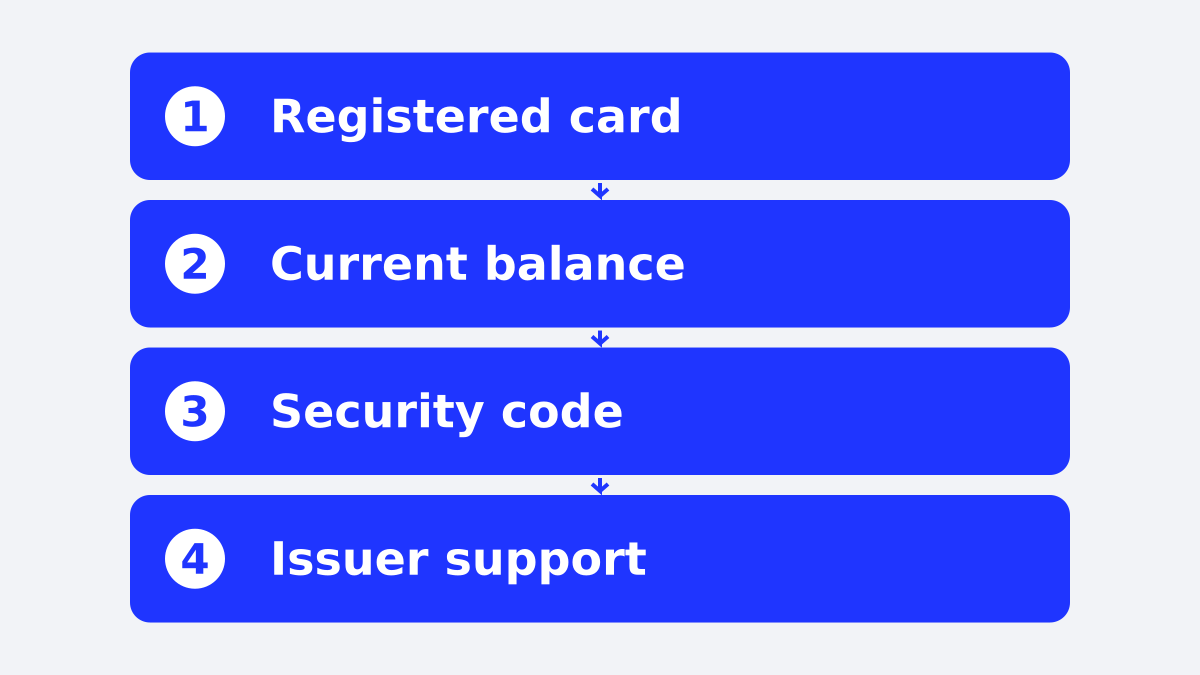
You can check a Starbucks eGift balance online, in the Starbucks app, or on a receipt after using the card. Registered cards appear through Manage online or the app’s Scan tab. As of November 2026, Starbucks’ gift card FAQ says new or unregistered cards require the security code.
For a new or unregistered card:
- Open the Starbucks gift card page.
- Follow the page’s balance or card-management instructions.
- Enter the card number and security code when requested.
- Review the available balance.
For a registered card, sign in to the Starbucks account connected to it and use Manage online or the app’s Scan tab. New or unregistered cards require the card number and security code on Starbucks’ gift card page.
As of November 2026, Starbucks’ gift card FAQ says gift card balances automatically refresh every 4 hours. If a recent gift does not appear, wait for the next refresh before checking again.
Where is the Starbucks gift card security code?
For a new or unregistered card, Starbucks’ gift card FAQ says the security code is required to check the balance. As of November 2026, the FAQ states that the code on a physical Starbucks Card is on the back.
Enter the security code when Starbucks’ card-management page requests it. A registered card can be checked through the connected Starbucks account instead.
Keep the security code private and share it only with someone who needs access to the card.
How to open an employer- or client-sent Starbucks eGift
If an employer or client used Giftronaut, you receive either an email from Team Giftronaut or a reward link that the sender shares through email, SMS, chat, or another channel. Giftronaut’s recipient guide says recipients do not need a Giftronaut account.
- Email: open the message from Team Giftronaut and follow its redemption link.
- SMS: open the reward link that the sender shared in the text message.
- Reward link: open the link supplied by the sender through email, SMS, chat, or another channel.
For an emailed reward, confirm your email address with the one-time verification code sent during redemption. Giftronaut’s recipient guide says the verification email is valid for 10 minutes. For a reward link, follow the redemption page’s instructions; each link is redeemable once. If you cannot access the code or link, contact the original sender.
The store route does not require the Starbucks app. After opening the eGift, print it and bring it to a participating café.
If the reward link does not open, contact the original sender about the delivery. The original sender updates an incorrect email address and resends the reward.

What to do when a Starbucks eGift will not work
When a Starbucks eGift fails, identify whether the problem involves delivery, card access, balance, or store acceptance. Then use the matching check below.
If the gift message will not open
If the link still fails, contact the sender for a reward-platform delivery problem. For a Starbucks eGift problem, Starbucks’ 2023 Card Terms list StarbuckseGiftCardSupport@cashstar.com and 1-800-782-7282.
If the balance is missing
Check whether the card is registered to the Starbucks account you are using. For an unregistered card, enter the card number and security code on Starbucks’ gift card page. A registered card can be checked through Manage online or the app’s Scan tab.
If the card is declined in a café
Ask whether the location accepts Starbucks Cards, because certain airport, grocery, and bookstore locations have different rules under Starbucks’ 2023 Card Terms. If the location accepts Starbucks Cards, check the remaining balance and the card details before asking Starbucks eGift Support for help.
If the security code is rejected
Check that you entered the security code requested by Starbucks’ card-management page. If it remains unusable, contact Starbucks eGift Support at StarbuckseGiftCardSupport@cashstar.com or 1-800-782-7282, as listed in Starbucks’ 2023 Card Terms.
If the company reward link fails
If the company reward link fails, contact the employer, client, or sender that delivered the reward.
Keep the original eGift message until you finish using it
Keep the original eGift message available while you redeem the card.
For help with the eGift, use the support details on Starbucks’ gift card page.

Frequently Asked Questions
What should I do if my Starbucks eGift link does not open?
For a Giftronaut delivery problem, contact the sender, as Giftronaut’s recipient guide explains. For a Starbucks eGift problem, contact Starbucks eGift Support, listed in Starbucks’ 2023 Card Terms.
Can I use a Starbucks eGift online?
You can manage a registered Starbucks eGift online through the card page’s Manage option. For a mobile order, use the registered card in the Starbucks app; Starbucks’ published terms do not establish a separate generic Starbucks.com checkout route for an eGift.
How do I open a Starbucks eGift sent by my employer?
Open the email or reward link supplied by the sender, then follow the redemption steps. For an emailed Giftronaut reward, confirm your email address with the one-time verification code. No Giftronaut account is needed; if the link fails, contact the original sender.
Can I check a Starbucks gift card balance without the security code?
You can check a registered card without the security code through the Starbucks account connected to it. Starbucks’ gift card FAQ says a new or unregistered card requires the security code.
Where is the security code on a Starbucks gift card?
On a physical Starbucks Card, the security code is on the back, according to Starbucks’ gift card FAQ. A new or unregistered card requires the code for balance checks.
Do Starbucks gift cards expire?
Starbucks’ 2023 Card Terms state that Starbucks gift cards, including eGifts, have no expiration date and that their value does not expire.