
April 1, 2026
Edit Scheduled Orders
Where you’ll see this:
Dashboard → Order Management → Order History → Order Details
You can now update the send time for scheduled orders to keep your campaigns on track.
How it works:
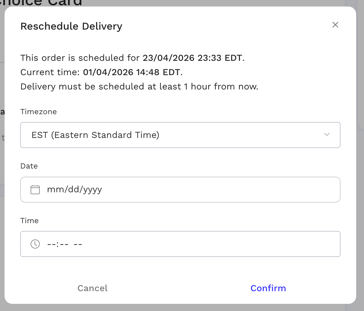
1. Click Reschedule under the order you want to update.

2. Adjust the timezone, date, and time — then confirm your changes.
Restrictions:
-
Edits are not allowed within 1 hour of the scheduled send time
-
New delivery time must be at least 1 hour from the current time
Edit Smart Orders
Where you’ll see this:
Dashboard → Order Management → Smart Orders → Order Details
You can now edit Smart Orders to ensure your program runs exactly as intended.

Editable fields:
-
Message fields (subject line, sender name, email display name, message, template content)
-
Add or remove recipients
-
Send time and frequency settings
-
Currency and reward amount
Important notes:
-
Editing a Smart Order will pause it
-
After saving, the order must be set live again
-
Changes apply only to rewards scheduled 24 hours or more from now
-
Newly added recipients will also only receive rewards scheduled 24+ hours ahead
More control, smarter automation.
Clone Orders
Where you’ll see this:
Dashboard → Order Management → Order History/Smart Orders → Order Details
You can now clone previous orders to quickly repeat sends—no need to start from scratch.

Available for:
-
One-Time Orders
-
Smart Orders
What gets copied:
-
Card type and design
-
Currency and amount
-
Message content
-
Recipient list
Save time by duplicating past orders and keep your recurring sends consistent and efficient.
View Past Order Messages
Where you’ll see this:
Dashboard → Order Management → Order History/Smart Orders → Order Details
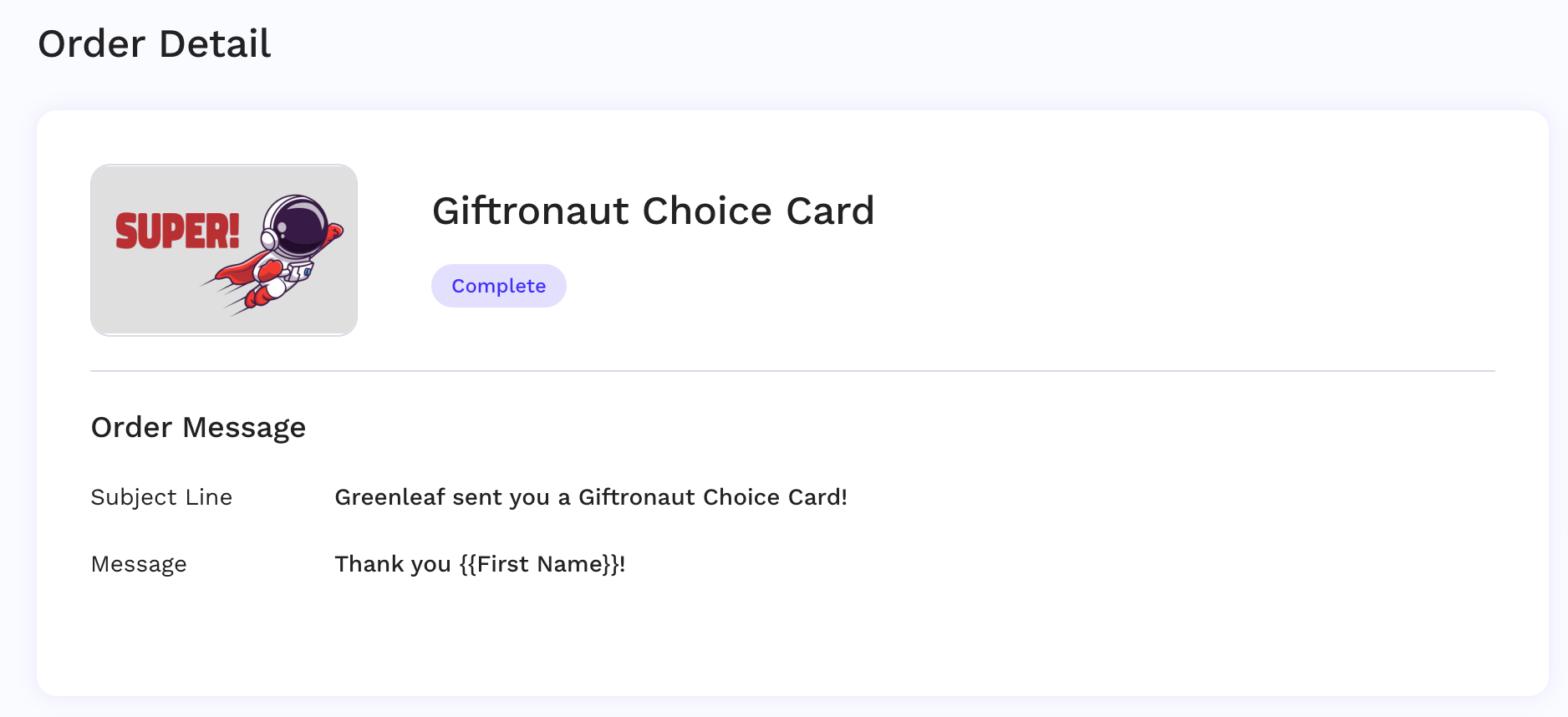
You can now view previously sent messages directly under Order Details for easy reference.
What this means:
-
All previous orders display the subject line and message content
-
Full visibility into past communications, so you can review exactly what was sent to recipients
Recipient Management Updates
Where you’ll see this:
Dashboard → Place an Order → One-Time Order → Step 3: Recipient
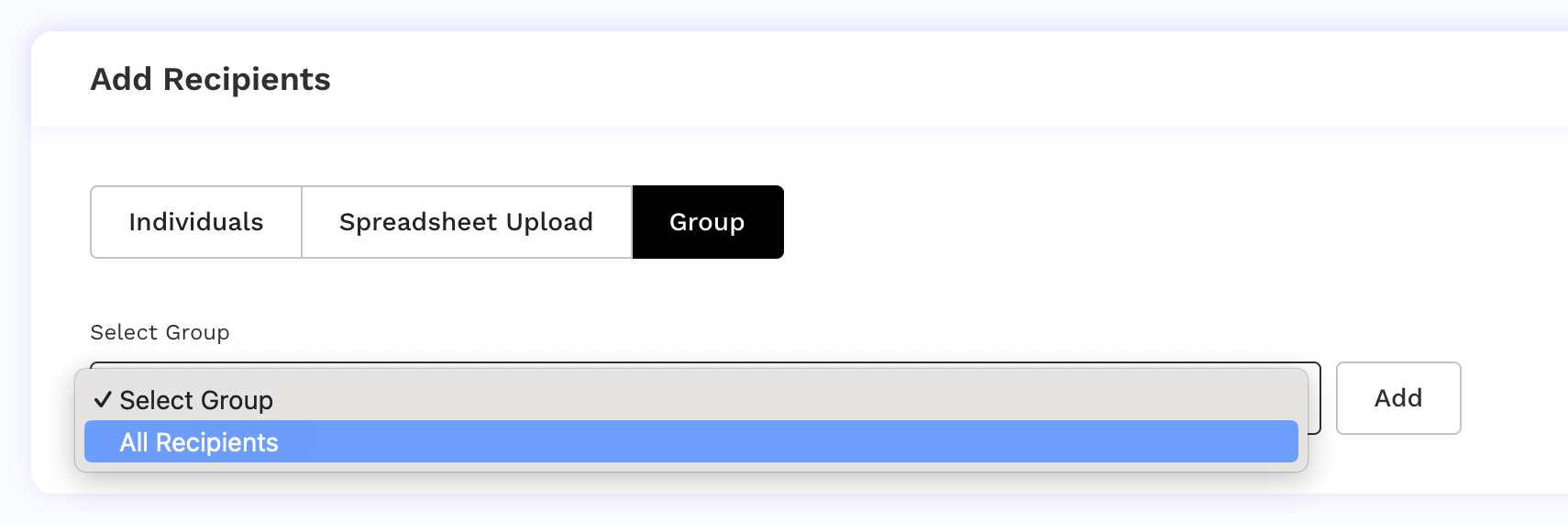
You can now select the All Recipients group when placing an order.
What this means:
-
Access your full recipient list without needing to organize them into groups
-
Simplifies bulk sending workflows
Less setup. Greater convenience.
Branded Card Recipient Email OTP Verification
Recipients see this during Branded Card redemption
Following our previous rollout for Choice Cards, email OTP verification is now extended to Branded Card recipients to further strengthen recipient security.
How It Works
1. Receive Reward Email
-
Recipient clicks Redeem your Gift Card
2. Access OTP Request Page
-
Recipient clicks Send Verification Email
3. Email Verification
-
Recipient opens the email and clicks Verify Email and Redeem Gift Card
4. Success
-
Upon successful verification, the recipient is immediately redirected to the redemption page